Pick and Place File Guide: Format, Export and Assembly Checks
A pick and place file records where each component belongs on a PCB, its rotation and the side of the board it occupies. It gives the assembly team placement data from the design, alongside the BOM and board files.
The numbers only make sense when their units, origin and orientation conventions are clear. Before sending the file, check both its contents and how those contents relate to the released PCB layout.
What Is a Pick and Place File?
A pick and place file is a component-position report exported from PCB design software. Depending on the software or assembly provider, it may be called a component placement list (CPL), centroid file, XY file or position file. Similar names do not guarantee identical columns or coordinate conventions.
During SMT assembly preparation, the manufacturer uses this report to associate component references with locations and orientations. The production team still has to configure the applicable machine program, component handling and placement checks.
The files in an assembly package answer different questions. A PCB BOM identifies the parts and quantities for the build. The placement file supplies their positions. Gerber and drill outputs describe the bare board, while an assembly drawing can clarify polarity, special instructions and the intended arrangement. A BOM alone does not provide the placement information contained in an XY report.
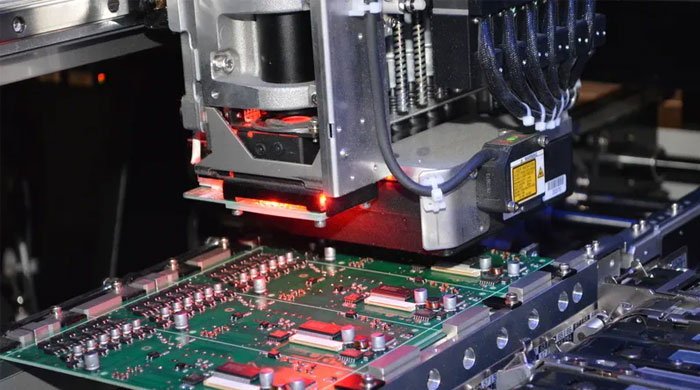
Placement data connects the design layout with assembly preparation. Photograph from the existing site media library.
What Should a Pick and Place File Include?
Start with the component reference, X/Y location, rotation and board side. Package and value fields can help with identification, but the receiving manufacturer’s import requirements determine the final column arrangement.
| Field | What it tells the assembly team | What to check |
|---|---|---|
| Reference designator | Which component the record describes, such as R1 or U1 | Match the reference to the intended assembly version |
| X and Y | Location of the selected component reference point | Confirm units, board origin and the point being reported |
| Rotation | Orientation relative to the export’s angular convention | Check the zero orientation, positive direction and board side |
| Side or layer | Whether the part is on the top or bottom | Use side labels the receiving system can interpret |
| Package or footprint | Additional information about the intended physical package | Cross-check against the BOM and PCB footprint |
| Value or comment | Supporting identification, where included | Keep it separate from the part’s purchasing identity |
The coordinate reference matters. Altium, for example, offers coordinates based on the outer-pad center, the footprint origin or Pad 1. These may differ on the same footprint. Its assembly output documentation describes the Center, Ref and Pad coordinate fields separately.
For an asymmetric connector, a footprint’s chosen reference point may sit away from the visible body center. KiCad’s SMD footprint-anchor convention also recognizes exceptions and directs attention to the component datasheet. Moving an exported point to the apparent center by eye can therefore introduce an error.
A platform can require a specific format. JLCPCB’s published CPL instructions, for example, specify Designator, Mid X/Mid Y, Layer and Rotation; metric coordinates; and counterclockwise positive rotation. They recommend CSV, XLS or XLSX. These are useful, concrete requirements for that platform, as described in its Pick & Place File guidance. For another assembler, confirm the receiving format before adapting the export.
Pick and Place File Example: Reading a Placement Row
The following is a simplified, hypothetical CSV for explanation. It is not a customer file, a software-generated export or a production-ready template.
Assume a single board with the origin at its lower-left corner in the top-view drawing. Coordinates are in millimeters, with positive X to the right and positive Y upward. All three illustrated components are on the top side. In this example, positive rotation is counterclockwise from each footprint’s defined zero orientation.
Reference,X_mm,Y_mm,Rotation_deg,Side,Footprint
R1,12.000,8.000,0,Top,R_0603
R2,16.000,8.000,90,Top,R_0603
U1,24.000,12.000,90,Top,QFN_32
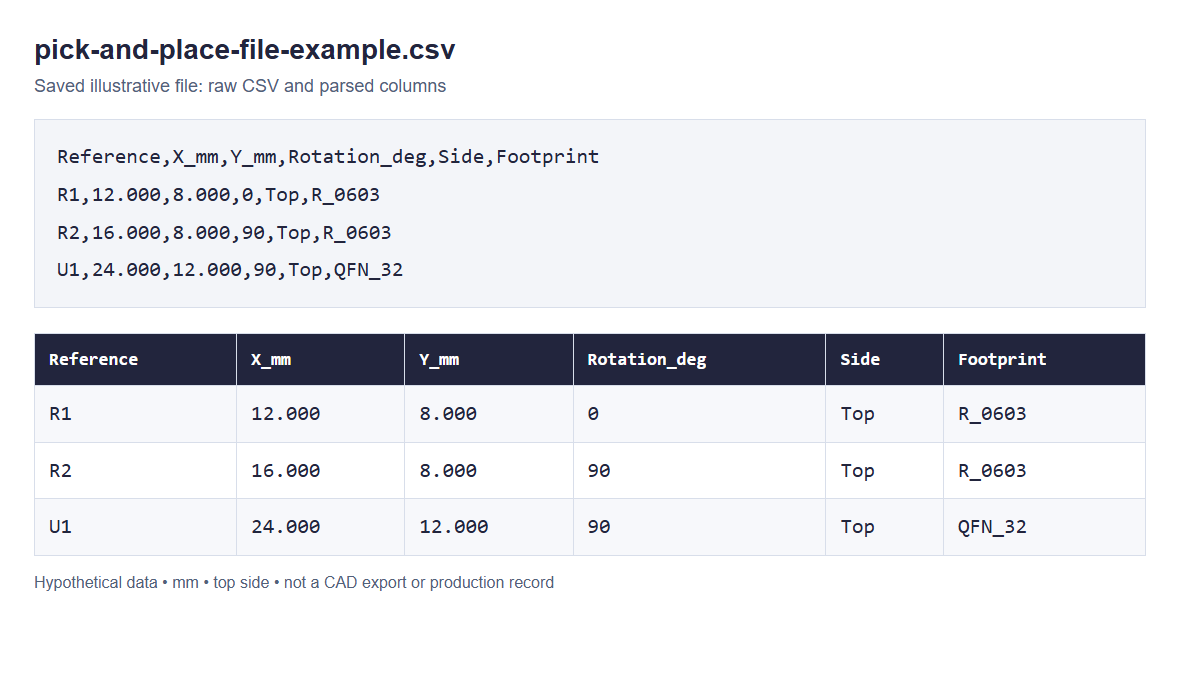
Actual file-content view of the saved illustrative CSV. The data is hypothetical, not a CAD export or production record. Click to enlarge.
The U1 row places its defined reference point 24 mm to the right and 12 mm above the chosen board origin. Its orientation is 90° from that footprint’s zero orientation. The row alone does not establish where Pin 1 appears: that also depends on the footprint definition.
R1 and R2 have the same footprint label but different locations and angles. Their placement records remain separate even if the BOM groups them into one purchasing line. If R2 is marked DNP (do not populate) in this assembly version, its treatment in the position file should follow the agreed policy.
Changing an origin changes the numbers without necessarily changing the board layout. If the new origin is 5 mm to the right of the old one, with the same axes, U1’s X value becomes 19 mm: 24 − 5 = 19. That simple offset explains why comparing raw numbers from files with different origins can be misleading.
After any conversion, check that the file still opens into the intended columns. A decimal coordinate must remain a coordinate; a comma within a text field must not push the remaining values into different columns. Keep an unchanged copy of the original export so the transformation can be checked.
How to Generate a Pick and Place File
Generate the file from the PCB revision and assembly version intended for manufacture. Before exporting, confirm which components are fitted and whether the deliverable represents a single board or a panel.
For KiCad 9, the documented route is File → Fabrication Outputs → Component Placement (.pos, .gbr). Use the KiCad 9 placement-output instructions for that version; menu wording can differ in other releases.
- Choose the output format and units. Match the recipient’s requirements. Renaming a POS file to CSV does not rearrange its columns or convert its coordinates.
- Select the output origin. Check whether the export uses the board’s drill/place origin or the page origin. Make the choice explicit in the handoff notes.
- Review component exclusions. KiCad 9 provides SMD-only, through-hole-pad and DNP filtering options, as well as a footprint-level position-file exclusion. A filter can remove a part you intended to assemble.
- Choose the board-side arrangement. Confirm whether the receiving team wants combined or separate front/back data and which bottom-side coordinate settings apply.
- Generate and open the actual output. Check several identifiable parts, the header, units, side labels and populated references. Compare the result with the released layout before packaging it.
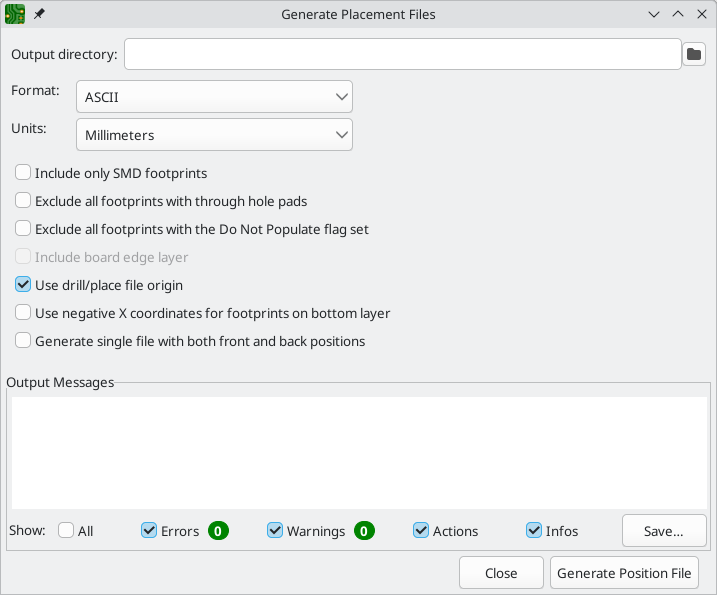
KiCad 9 documentation: placement-file export settings. The shown selections are an example, not a universal preset. Screenshot: The KiCad Documentation Contributors, CC BY 3.0; unchanged, displayed at reduced size.
If a surface-mount connector includes through-hole mounting features, inspect both its footprint attributes and the filter that excludes footprints containing through-hole pads. Its assembly role and the export filter’s decision may not be the same.
Bottom-side settings need particular care. KiCad 9 documents an option to negate bottom-side X coordinates. Altium documents an option that reverses the signs of bottom-side Ref-Y and Pad-Y values. These are specific software settings affecting specific fields. They do not establish a general instruction to mirror every bottom-side file or add 180° to every bottom-side angle. The Altium setup description identifies the affected fields.
Record any requested transformation rather than applying an undocumented spreadsheet correction. Once the data has been adapted for a receiving system, check the adapted file against the design again.
How to Check the File Before Assembly
Check the component list first, then the physical meaning of the coordinates and angles. This separates missing data from data that is present but interpreted incorrectly.
Missing or Unexpected Components
Compare references with the BOM and assembly drawing for the same revision and variant. Explain differences rather than assuming the files should have equal row counts: a BOM can group several references, while a placement file normally lists them individually.
For a missing component, inspect its footprint attributes and export filters before adding a manual row. For an unexpected component, check whether it is DNP, belongs to another assembly version or represents a non-assembled feature.
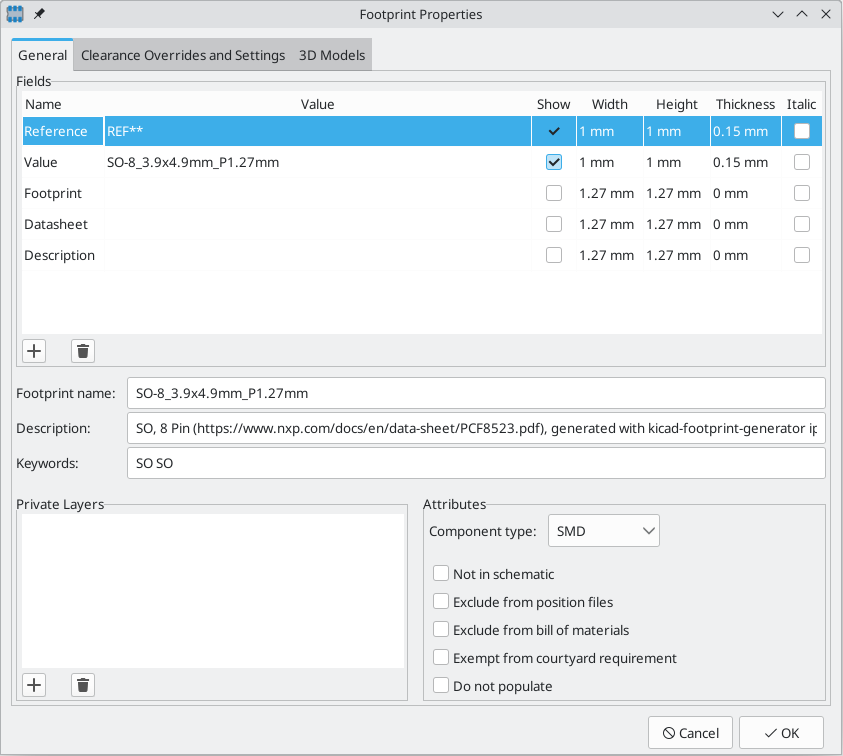
KiCad footprint properties: component type and exclusion flags can affect the output. Screenshot: The KiCad Documentation Contributors, CC BY 3.0; unchanged, displayed at reduced size.
Keep intentional omissions explicit. A DNP position may be removed from the placement export or retained with a clearly communicated status, depending on the agreed process. The important point is that the receiving team can distinguish an intentional omission from an export mistake.
Coordinate and Orientation Checks
Select recognizable references in different regions of the board and inspect any bottom-side components separately. For polarized or asymmetric packages, compare the footprint orientation and assembly drawing with the part’s pin or polarity information.
| Observed problem | What to investigate |
|---|---|
| Many parts appear shifted by a similar amount | Different origins or a panel offset applied to only one data set |
| Distances appear scaled | Mixed units or a conversion step |
| Only bottom-side parts appear reflected | Side interpretation and the specific export/import transformation |
| One package appears rotated incorrectly | Footprint zero orientation, pin information and the receiving system’s interpretation |
| A few records have implausible values | Column mapping, delimiters or edited cells |
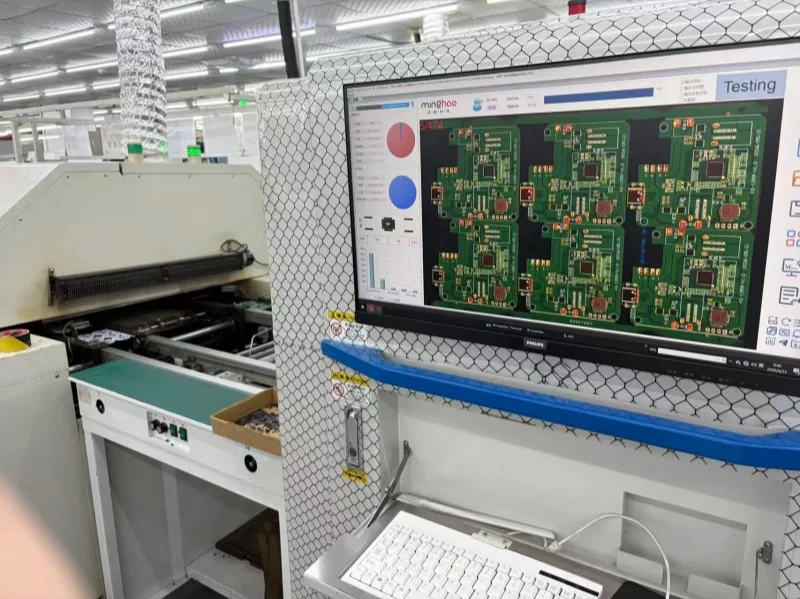
Board images on an inspection workstation. This photograph illustrates inspection context; it does not validate the example CSV.
These observations guide investigation; they do not identify a cause on their own. In one KiCad forum discussion, the original poster first suspected Y-coordinate behavior, then reported that a POS-to-CSV conversion had displaced commas. That external example is a useful reason to inspect the converted data before altering the design coordinates.
Also distinguish the design origin from the fiducial marks used for optical alignment. The origin defines how coordinates are expressed. Fiducials provide physical references for applicable machine alignment; they do not make an inconsistent file package self-correcting.
For the final PCB assembly handoff, provide the placement file with the matching BOM, board outputs and assembly instructions. State the revision, variant, units, origin, single-board or panel basis, DNP policy and any applied transformations. This gives the receiving team enough context to review the placement data and resolve discrepancies before production preparation proceeds.
Related Posts
PCBA Prototype
October 19, 2026